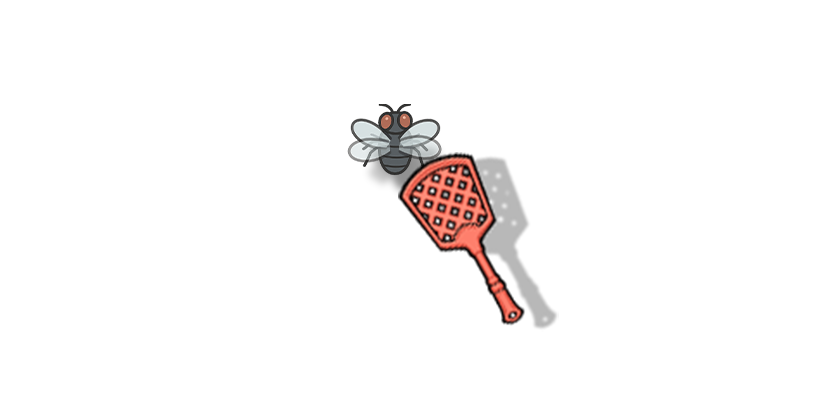
웹 개발에서 사용자 경험을 향상시키는 재미있는 방법 중 하나는 마우스 커서를 커스터마이징하는 것입니다. 오늘은 HTML, CSS, JavaScript를 사용해서 마우스 커서를 파리채로 바꾸고, 화면에 돌아다니는 파리를 잡는 미니 게임을 만드는 방법을 알아보겠습니다. 이 프로젝트는 CSS의 cursor 속성과 JavaScript의 DOM 조작을 활용한 흥미로운 예제입니다.
1. 마우스 커서 이미지 교체하기
먼저 가장 기본적인 마우스 커서 이미지 교체부터 시작해보겠습니다. CSS의 cursor 속성을 사용하면 기본 마우스 포인터를 원하는 이미지로 바꿀 수 있습니다.
body {
  cursor: url('파리채이미지URL'), auto;
}
위 코드에서 url() 함수 안에 파리채 이미지의 URL을 넣으면 됩니다. 뒤에 auto는 이미지 로드에 실패했을 때 기본 커서를 사용하겠다는 의미입니다. 이미지 파일은 PNG, GIF, JPG 등 대부분의 이미지 형식을 지원하지만, 크기가 너무 크면 성능에 영향을 줄 수 있으니 적당한 크기로 준비하는 것이 좋습니다.
2. 파리 캐릭터 만들기
이제 화면에 돌아다닐 파리를 만들어보겠습니다. 파리는 두 가지 상태를 가집니다: 앉아있을 때와 날아다닐 때입니다.
.fly {
  position: fixed;
  width: 3.5%;
  height: 3.5%;
  background-image: url('앉아있는파리이미지URL');
  background-size: contain;
  background-repeat: no-repeat;
  transition: transform 0.6s cubic-bezier(0.4, 1.8, 0.3, 1),
              top 1.4s cubic-bezier(0.25, 1, 0.5, 1),
              left 1.4s cubic-bezier(0.25, 1, 0.5, 1);
  z-index: 9999;
}

.fly.flying {
  background-image: url('날아가는파리이미지URL');
  width: 5%;
  height: 5%;
}

.fly.sit {
  animation: sitFloat 1.4s infinite ease-in-out;
}

@keyframes sitFloat {
  0% { transform: scale(1.0); }
  50% { transform: scale(1.04); }
  100% { transform: scale(1.0); }
}
여기서 중요한 점은 position: fixed를 사용해서 파리가 화면에 고정되도록 하고, transition 속성으로 부드러운 이동 효과를 주는 것입니다. cubic-bezier 함수를 사용해서 자연스러운 움직임을 구현했습니다.
3. JavaScript로 파리 움직임 구현하기
파리가 랜덤하게 움직이도록 하는 JavaScript 코드를 작성해보겠습니다.
const fly = document.getElementById('fly');
let flyAngle = 0;
let flyTimer = null;

function moveFly(isClick = false) {
  const maxX = window.innerWidth - 60;
  const maxY = window.innerHeight - 60;
  const targetX = Math.random() * maxX;
  const targetY = Math.random() * maxY;

  // 현재 파리 위치 계산
  const flyRect = fly.getBoundingClientRect();
  const flyX = flyRect.left + flyRect.width / 2;
  const flyY = flyRect.top + flyRect.height / 2;

  // 목표 지점까지의 각도 계산
  const dx = targetX - flyX;
  const dy = targetY - flyY;
  flyAngle = Math.atan2(dy, dx) * 180 / Math.PI + 90;

  // 파리를 날아가는 상태로 변경
  fly.classList.remove('sit');
  fly.classList.add('flying');
  fly.style.transform = `rotate(${flyAngle}deg)`;
  fly.style.left = `${targetX}px`;
  fly.style.top = `${targetY}px`;

  // 일정 시간 후 앉은 상태로 변경
  if (flyTimer) clearTimeout(flyTimer);
  flyTimer = setTimeout(() => {
    fly.classList.remove('flying');
    fly.classList.add('sit');
    fly.style.transform = `rotate(${flyAngle}deg)`;
  }, isClick ? 800 : 1500);
}

// 파리 클릭 이벤트
fly.addEventListener('click', (e) => {
  e.stopPropagation();
  moveFly(true);
});

// 자동으로 파리 움직임
function startFlyLoop() {
  setInterval(() => {
    moveFly();
  }, 4000);
}
이 코드는 Math.random()을 사용해서 랜덤한 위치를 생성하고, Math.atan2()로 파리가 향할 방향의 각도를 계산합니다. 파리를 클릭하면 더 빠르게 도망가도록 구현했습니다.
4. 완성된 파리잡기 게임
이제 모든 코드를 합쳐서 완성된 파리잡기 게임을 만들어보겠습니다.
<!DOCTYPE html>
<html lang="ko">
<head>
    <meta charset="UTF-8">
    <meta name="viewport" content="width=device-width, initial-scale=1.0">
    <title>마우스 커서 이미지 교체해서 파리잡기</title>
    <style>
      body {
        cursor: url('파리채이미지URL'), auto;
      }
      .fly {
        position: fixed;
        width: 3.5%;
        height: 3.5%;
        background-image: url('앉아있는파리이미지URL');
        background-size: contain;
        background-repeat: no-repeat;
        transition:
          transform 0.6s cubic-bezier(0.4, 1.8, 0.3, 1),
          top 1.4s cubic-bezier(0.25, 1, 0.5, 1),
          left 1.4s cubic-bezier(0.25, 1, 0.5, 1);
        z-index: 9999;
      }
      .fly.flying {
        background-image: url('날아가는파리이미지URL');
        width: 5%;
        height: 5%;
      }
      .fly.sit {
        animation: sitFloat 1.4s infinite ease-in-out;
      }
      @keyframes sitFloat {
        0% { transform: scale(1.0); }
        50% { transform: scale(1.04); }
        100% { transform: scale(1.0); }
      }
    </style>
</head>
<body>
  <div class="fly" id="fly"></div>
  <script>
    const fly = document.getElementById('fly');
    let flyAngle = 0;
    let flyTimer = null;

    function moveFly(isClick = false) {
      const maxX = window.innerWidth - 60;
      const maxY = window.innerHeight - 60;
      const targetX = Math.random() * maxX;
      const targetY = Math.random() * maxY;

      const flyRect = fly.getBoundingClientRect();
      const flyX = flyRect.left + flyRect.width / 2;
      const flyY = flyRect.top + flyRect.height / 2;

      const dx = targetX - flyX;
      const dy = targetY - flyY;
      flyAngle = Math.atan2(dy, dx) * 180 / Math.PI + 90;

      fly.classList.remove('sit');
      fly.classList.add('flying');
      fly.style.transform = `rotate(${flyAngle}deg)`;
      fly.style.left = `${targetX}px`;
      fly.style.top = `${targetY}px`;

      if (flyTimer) clearTimeout(flyTimer);
      flyTimer = setTimeout(() => {
        fly.classList.remove('flying');
        fly.classList.add('sit');
        fly.style.transform = `rotate(${flyAngle}deg)`;
      }, isClick ? 800 : 1500);
    }

    fly.addEventListener('click', (e) => {
      e.stopPropagation();
      moveFly(true);
    });

    function startFlyLoop() {
      setInterval(() => {
        moveFly();
      }, 4000);
    }

    // 초기 설정
    fly.style.left = '100px';
    fly.style.top = '100px';
    fly.style.transform = 'rotate(90deg)';
    fly.classList.add('sit');
    startFlyLoop();
  </script>
</body>
</html>
이 코드를 실행하면 마우스 커서가 파리채로 바뀌고, 화면에 파리가 나타나서 주기적으로 움직입니다. 파리를 클릭하면 더 빠르게 도망가는 재미있는 인터랙션을 경험할 수 있습니다. 이미지 URL 부분을 원하는 이미지로 교체해서 사용하면 됩니다. 이런 방식으로 다양한 테마의 미니 게임을 만들 수 있으니 창의적으로 활용해보세요!
📁 완성된 예시 파일
위에서 설명한 모든 기능이 포함된 완전한 HTML 파일을 확인하고 싶으시면, 밑에 파일을 다운로드해서 확인해주세요~

'웹 퍼블리싱 | Web Publishing > 스크립트 | Script' 카테고리의 다른 글
| 버튼 클릭으로 배경과 내용이 동시에 바뀌는 인터랙티브 페이지 만들기 (2) | 2025.06.25 |
|---|---|
| 시간에 따라 자동으로 테마가 바뀌는 웹페이지 만들기 (1) | 2025.06.24 |
| 모바일 웹에서 가로형 화면 사용을 제한하는 방법 (0) | 2025.06.24 |


